AI Character in Claude and ChatGPT: The MCP Connector
Connect Muzea to Claude or ChatGPT with MCP and ask for photos and videos of your consistent AI character in plain words. Step-by-step tutorial.
The Muzea team · · 5 min read
You can now use your AI character in Claude and ChatGPT. Muzea has a connector based on MCP: you add it once to your assistant, then ask in plain words for photos, videos or a film storyboard of a character you already created, and the assistant calls Muzea to make them.
The short answer:
- MCP (Model Context Protocol) is an open standard that lets an AI assistant call outside tools. Anthropic created it, and Claude supports it through custom connectors.
- Muzea's connector address is
https://lab.muzea.app/api/mcp. You paste it into your assistant, sign in to Muzea and allow access. - Everything is paid in your Muzea credits, and your assistant shows the price and waits for your OK before it creates anything.
What is an MCP connector, in plain words?
An assistant such as Claude writes and reasons well, but on its own it cannot reach your Muzea account. A connector fixes that. It gives the assistant a short list of actions it is allowed to use: list your characters, make photos, start a video.
Anthropic describes custom connectors as a way to connect Claude to services it does not know by default. You sign in with OAuth, so you approve specific permissions and never hand over your password. The connection runs from Anthropic's cloud, so the server must be reachable on the public internet, which Muzea's is.
Why a character connector is different
Search for image tools in MCP and you mostly find connectors that wrap a generic image model. Picsart, for example, offers images, video and audio from Claude. They are useful, but each request starts from zero: a new prompt gives a new face.
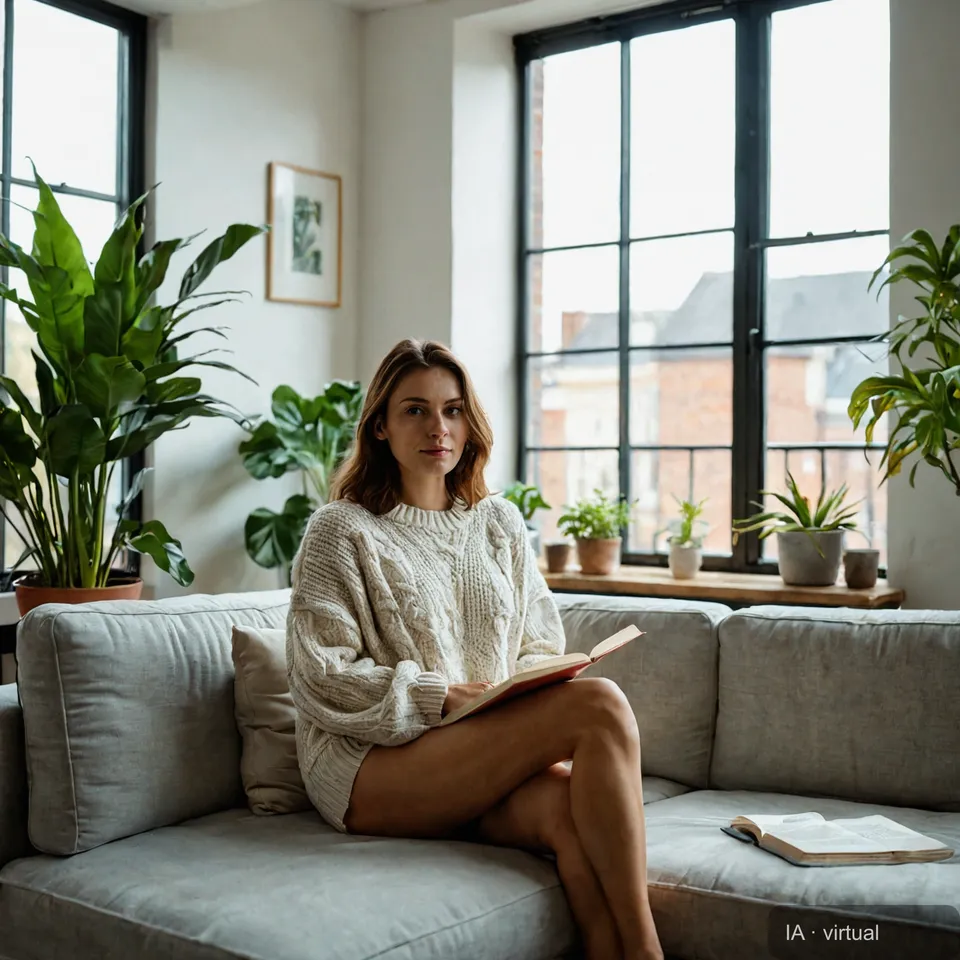
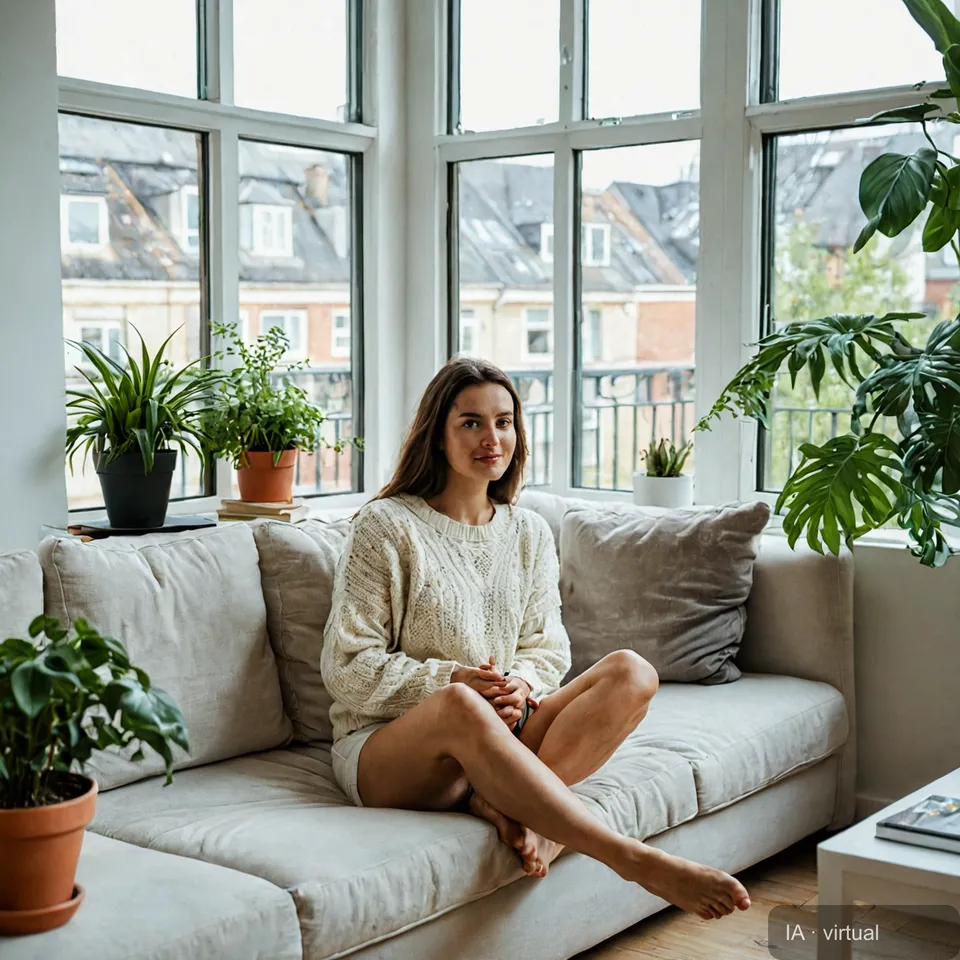
The Muzea connector works the other way round. You create the character once, in the studio, with a face you chose. Every photo or video the assistant asks for then starts from that same face. If you want the full method behind it, read our guide to a consistent AI character.
Tutorial: connect Muzea to your assistant
You need a Muzea account and at least one character with its face chosen.
In Claude
- Open Settings → Connectors → Add custom connector.
- Name it "Muzea" and paste
https://lab.muzea.app/api/mcp. - Click Connect, sign in to Muzea and allow access.
On Claude's Free plan you are limited to one custom connector, according to Anthropic's help page. Team and Enterprise plans need an Owner to add it first.
In ChatGPT
Open Settings → Apps & Connectors, create a connector (developer mode), paste the same address, choose OAuth, then sign in to Muzea and allow access.
In other MCP tools
In Claude Code, run claude mcp add --transport http muzea https://lab.muzea.app/api/mcp. In Cursor, VS Code or MCP Inspector, add a "Streamable HTTP" server with the same address.
Create the character your assistant will use
What you can ask your assistant
The connector offers eight actions. Here are the requests that matter most:
| You say | What happens | Price |
|---|---|---|
| "Show me my characters" | Lists your characters and whether each is ready | Free |
| "Make 3 photos of Léa at a café terrace in Paris" | Three photos with Léa's face | 1 credit per photo |
| "A 10-second video of Léa walking by the river at sunrise" | A start photo, then a vertical video (paid plans) | 40 credits, plus 1 for a new start photo |
| "Plan a 15-second reel: Léa opens her shop" | A project with a shot-by-shot storyboard | 2 credits |
| "Where is my video?" | Progress, then links to the results | Free |
You can also ask for the price first. Photos cost 1 credit each, a 5-second video costs 20 and a 10-second one costs 40.
Price first, then your OK
An assistant that spends your credits without asking would be a bad idea. So any creation request first returns a quote: the cost and your balance. Only after you confirm does Muzea start the job. If it fails, the credits are refunded, as in the studio.
Safe-for-work only
Through assistants, Muzea creates only safe-for-work content: fictional adults, no real or famous people, no nudity or explicit content. Requests that break these rules are refused before anything is generated. This also applies to the administrator account. Anthropic itself warns that you should connect only to servers you trust, and you stay in control: in Muzea Studio, open Plan & credits → Connected assistants and click Remove, and the assistant loses access immediately.
A first prompt to try
Once connected, paste this into Claude:
"Use Muzea. List my characters, then quote 4 photos of Léa on a Lyon bookshop terrace, 4:5 format. If the price is fine, go ahead."
Then check the results in the studio, where every photo is saved. If you want a posting plan to go with them, our list of 30 AI influencer content ideas gives you a month of subjects.
Try a character made for storytelling
FAQ
What is an MCP connector?
It is a standard link between an AI assistant and an outside service. MCP stands for Model Context Protocol, an open standard created by Anthropic. Once the connector is added, your assistant can use the actions the service offers, with your permission.
Does the Muzea connector work with ChatGPT as well as Claude?
Yes. You add the same address in Claude, in ChatGPT's developer-mode connectors, or in any client that supports Streamable HTTP MCP servers such as Cursor or VS Code. The steps differ slightly from one app to another.
How much does it cost to generate from Claude?
The same as in the studio, taken from your Muzea credits: 1 credit per photo, 20 credits for a 5-second video and 40 for 10 seconds. Your assistant always shows the cost and waits for your confirmation first.
Can I use any character, even one I did not create in Muzea?
No. The connector only works with characters in your Muzea account, with a face you chose, so that every image keeps the same person. Create the character first, then ask your assistant to use it.
How do I remove the connection?
In Muzea Studio, open Plan & credits, then Connected assistants, and click Remove. You can also remove the connector in your assistant's settings.
Read next
Create an AI Character From One Sentence: The New Studio
Tutorial for the new Muzea Studio: create an AI character from one sentence, then make photos, videos and films from a single creation bar.
AI Influencer Names: How to Choose One That Sticks
How to pick an AI influencer name: 5 styles, a 4-step handle check, mistakes to avoid and 40 fictional examples to borrow ideas from.