Consistent Character AI Video: Keep One Face Across Clips
How to keep a consistent character in AI video: anchor every clip to one approved image, lock the look, keep clips short and fix drift early.
The Muzea team · · 7 min read
A consistent character in AI video means the same face, hair and outfit from the first clip to the last. Video models have no memory from one clip to the next, so you have to give them the same anchor every time. Here is the method, step by step.
The short answer:
- Start every clip from the same approved still image instead of describing the character again in words.
- Lock the look (hair, outfit, accessories, season) before you generate anything, and change only one thing per shot.
- Keep clips short, review each one, and fix drift before you move on to the next shot.
Why characters change between AI video clips
Each generation starts from scratch. A text-to-video model reads "a woman with auburn hair" and invents a new woman every time. The guides we compared agree on the cause: the models keep no identity between clips, so a face drifts as soon as the prompt, the lighting or the camera changes. Text alone can hold a style, but it rarely holds a face.
Drift shows up in predictable places:
| What changes | Why it happens |
|---|---|
| The face (jaw, eyes, age) | The prompt describes the character, no image anchors it |
| Hair length or style | The description is reworded from one clip to the next |
| Jewelry, sleeves, bag | Details are left to chance in each prompt |
| The body during motion | A big pose change is asked of a still that cannot support it |
The method: anchor, lock, shorten, check
1. Anchor every clip to one approved image
The most reliable fix is image-to-video: you create and approve a still image first, then animate it. Magic Hour calls reference images the most important element for keeping a character stable, and Renderforest recommends approving a still image before using it as the reference for video. If you do not have a face you can reuse across images yet, build one first with our method for a consistent AI character.
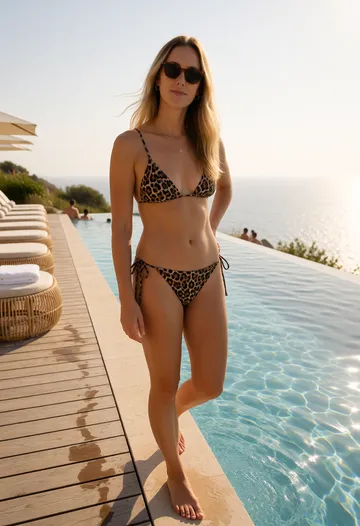
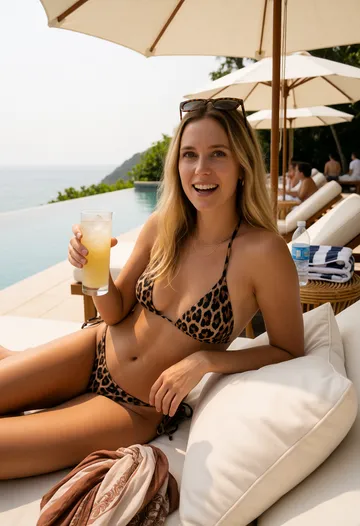
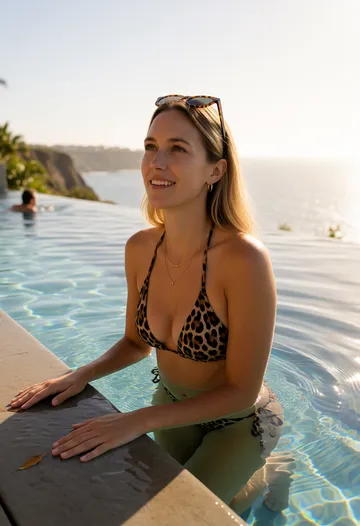

These four stills are the shots of a real Muzea project, "Lina in Bali, day 3". Each one was animated and the clips were edited into a 15-second video (watch it below): same face, same sunglasses, same necklace from the first second to the last.
2. Lock the look before you generate
Write down what must not move: hair, outfit, accessories, season, time of day. Renderforest suggests a "character passport" that fixes visible traits and a single identity block reused in every prompt without rewording. Then change one major variable per shot: place, camera distance, action, expression or light, not all at once.
3. Use one angle, or a small set
For a short clip, one clear portrait can be enough. For a head turn or a longer sequence, a few angles (front, three-quarter, profile) help. Magic Hour warns that more images are not automatically better: check how your tool uses them. Renderforest notes that Google's Veo accepts up to three reference images of a person, so the limit depends on the model.
4. Keep clips short
Shorter clips give the model less time to drift. Renderforest's rule of thumb: 5 to 8 seconds from one controlled prompt, 15 to 30 seconds from 3 to 5 short clips, and a storyboard first for anything longer. The same idea works for social video: cut between several 3 to 5 second shots rather than asking for one long take.
5. Chain from accepted frames, with care
Magic Hour suggests exporting a clean frame from an accepted clip to start the next shot. Check that frame against your original reference first: a face that already drifted in clip one is a poor source for clip two. Keep the original image as your fallback.
6. Review every clip before the edit
Watch each clip once for the face, once for the hands and outfit. Cut any clip where the character no longer matches. Fixing it takes one more generation; a mismatch in the final edit costs the whole video.
Ask for one simple action per clip
Most body glitches come from asking too much of a still. A person who "stands up, turns, picks up a cup and walks away" in five seconds is a recipe for a bent arm. Ask for one action that starts from the pose in the image: a smile, a head turn, a sip of coffee, hair in the wind. Change posture and outfit between shots, not inside one.
How Muzea does it
Muzea follows the same logic, built into the studio. You describe a character in one sentence and pick a face; that face then travels through every scene. For a video project you give a short brief, the studio proposes concepts and a storyboard, and each shot gets its own photo of your character, with the same face. Each photo is then animated into a short clip (5 seconds on the Creator plan, 5 to 10 seconds on Pro and Studio), and the clips are assembled into a vertical, square or landscape edit with text and music. A project also fixes its world once, the place, the season and the outfits, so the hair and accessories do not change from one shot to the next.
Create a character you can put on video
The free plan includes a portrait but no video; video starts with the Creator plan. See the pricing page for the current credits.
Quick checklist before you generate
- One approved still of the character, front-facing and sharp.
- A written look: hair, outfit, accessories, season.
- A storyboard of 3 to 5 second shots, one action each.
- One variable changed per shot.
- Review every clip, and regenerate the weak ones before the edit.
Once your clips are ready, you still need something to post. Our list of 30 AI influencer content ideas gives you a month of subjects, and the guide to launching a virtual influencer covers the strategy around them.
Make your character's first video
FAQ
Why does my AI character look different in every video clip?
Video models do not remember the previous clip, so each generation invents a new face from your text. Starting every clip from the same approved image, and keeping the character description identical, removes most of the difference.
Is image-to-video better than text-to-video for consistency?
For a recurring character, yes. An image gives the model the exact face to animate, while a text prompt only describes it. You still need to keep the clip short and the action simple.
How many reference images do I need?
One sharp portrait can be enough for a short clip. For head turns or longer sequences, a small set of three angles (front, three-quarter, profile) helps, and some models cap the number of references they accept.
How long should each clip be?
Short. Guides we compared suggest 5 to 8 seconds for a single prompt and several short clips stitched together for anything longer. For social video, 3 to 5 second shots are easy to keep consistent.
Can I use the same character in photos and videos?
Yes, if the video starts from a photo of that character. Create the face once, make your photos from it, then animate the best photos. The face stays the same because it never changes source.
Read next
AI Character in Claude and ChatGPT: The MCP Connector
Connect Muzea to Claude or ChatGPT with MCP and ask for photos and videos of your consistent AI character in plain words. Step-by-step tutorial.
Create an AI Character From One Sentence: The New Studio
Tutorial for the new Muzea Studio: create an AI character from one sentence, then make photos, videos and films from a single creation bar.